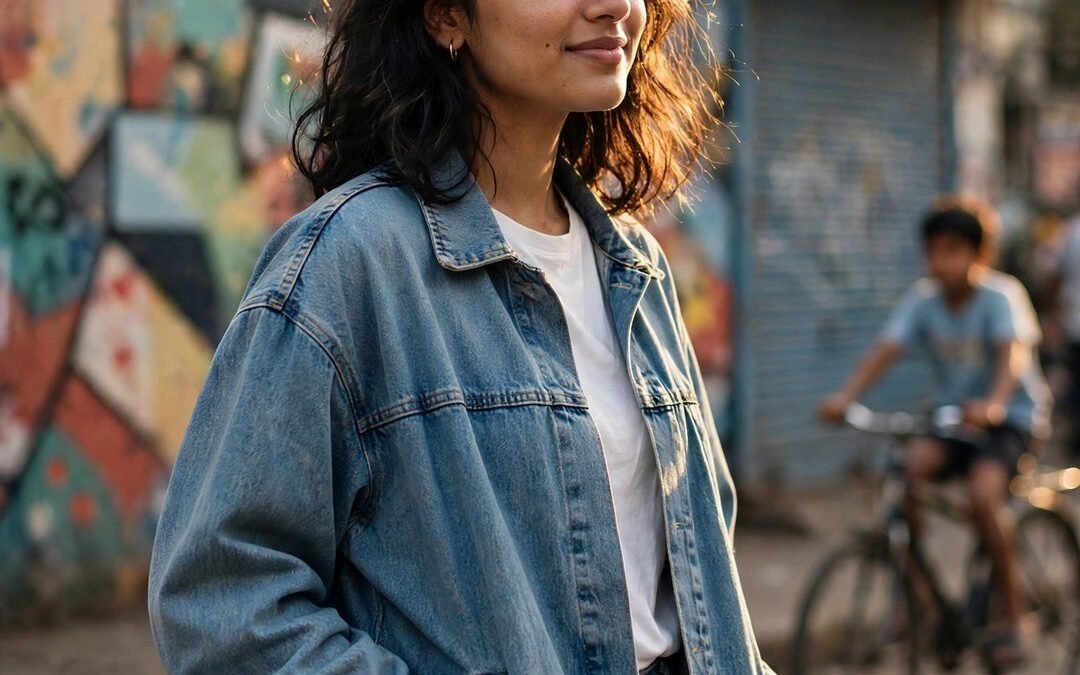
The most common complaint when using AI portrait generators is simple: “The outfit and background look great, but the face barely looks like me.” Even with a strong prompt in ChatGPT, Google Gemini, or Grok, the final image can subtly widen the nose, change eye distance, erase natural skin texture, or shift the jawline into a generic catalog model.
In almost every case, facial drift happens for two preventable reasons: an unsuitable reference photo or conflicting lighting and styling instructions inside the prompt. This guide explains why AI models alter uploaded faces and gives you a practical checklist to preserve your real likeness reliably.
Why AI Image Generators Alter Your Face
Multimodal generators do not “paste” your face onto a new body like a Photoshop cutout. Instead, they extract visual landmarks—eye spacing, brow ridge, nose bridge, lip shape, skin undertone, and hairline—from your reference photo and re-synthesize them under new lighting. Whenever the reference photo hides those landmarks or contradicts the scene you asked for, the model guesses the missing details using its training average.
- Heavy beauty filters: Snapchat, Instagram, or phone “beauty mode” smoothing erases pores and cheek contours, forcing the AI to invent artificial facial geometry.
- Angle mismatch: Uploading a tight front-facing passport photo while prompting a dramatic over-the-shoulder side profile forces the model to hallucinate the side of your nose and jaw.
- Harsh shadow clipping: Backlit selfies or dim party photos hide eye color and eyebrow shape, causing the generator to replace them with generic features.
- Multiple faces in the upload: Group selfies confuse identity extraction unless the prompt explicitly identifies which person to preserve.
Reference Photo Checklist: Good vs. Poor Inputs
| Input Factor | Works Reliably | Causes Facial Drift |
|---|---|---|
| Lighting on Face | Even natural daylight facing a window or open shade | Heavy overhead shadows, neon club lights, or strong backlight |
| Camera Angle | Straight-on or gentle 15-degree turn matching target pose | Extreme upward/downward angles or distorted wide-angle lens |
| Expression | Relaxed neutral mouth or natural soft smile | Exaggerated winking, squinting, or half-covered face |
| Obstructions | Clear view of eyes, forehead, eyebrows, and jawline | Sunglasses, heavy hands near chin, masks, or thick hair bangs |
| Image Quality | Sharp original camera file (at least 1000px wide) | Heavily compressed WhatsApp forwards or cropped screenshots |
How to Lock Likeness Inside Your Prompt
Even with a crisp selfie, your wording tells the generator how strictly it should adhere to your identity. Use the structure from our 6-part prompt formula and place identity protection right at the top:
- Explicitly forbid beautification: Phrases like “preserve the exact facial structure, nose, eyes, eyebrows, skin tone, and natural pores of the person in the reference photo; do not slim the face or smooth skin” stop the model from applying a generic glamour filter.
- Match expression to the upload: If your reference photo has a calm neutral expression, prompting a wide open-mouth laugh often reshapes your cheeks and teeth. Keep the target expression close to your reference photo.
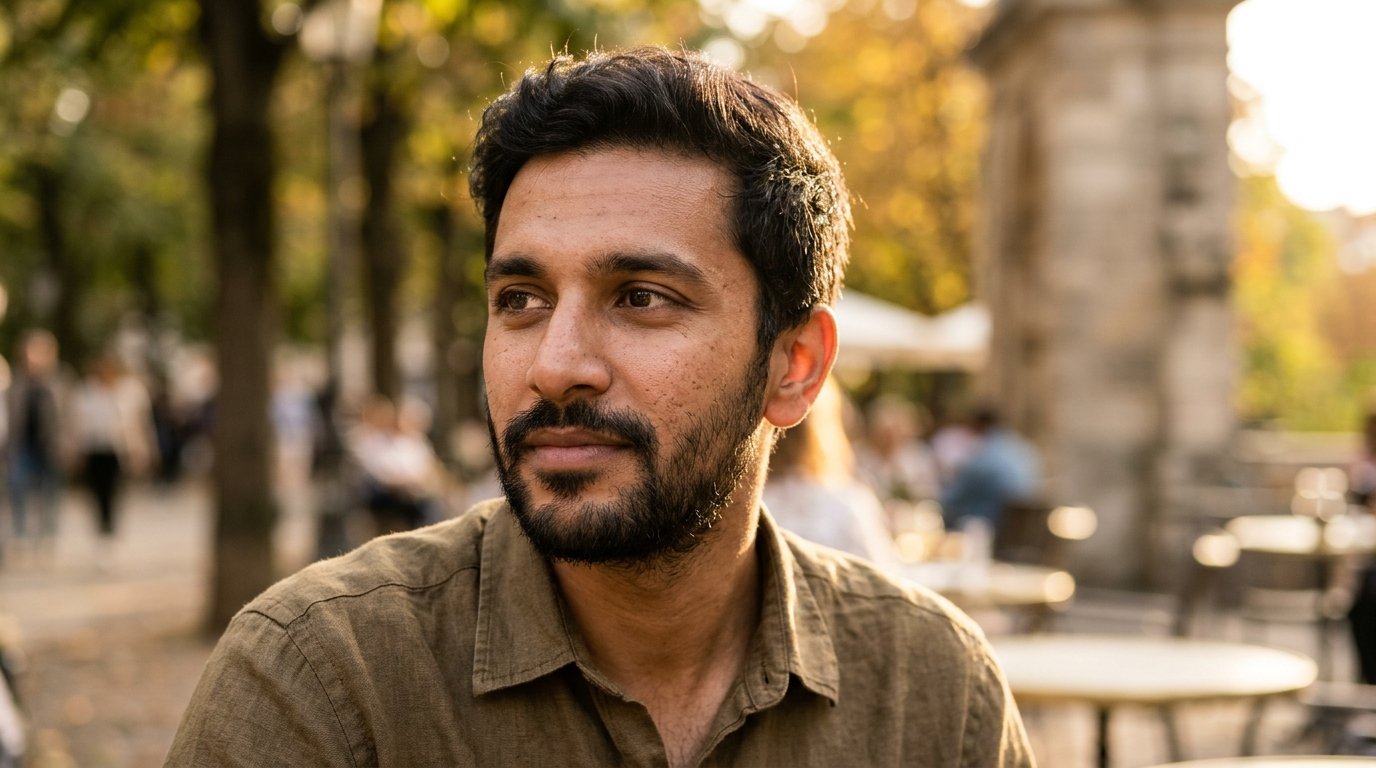
- Specify eyeglasses and facial hair clearly: If you wear glasses or keep a trimmed beard, mention them directly (for example, “keep the same rectangular eyeglasses and neatly trimmed beard from the reference image”). Otherwise, the AI may remove glasses or invent an unfamiliar beard line.
Fixing Lighting Mismatches Without Losing Identity
One subtle reason portraits look fake is mismatched light direction. If your uploaded photo has bright daylight hitting the left cheek, and you ask for a dark moody scene lit from the right, the model struggles to reconcile the shadows across your nose and cheekbones.
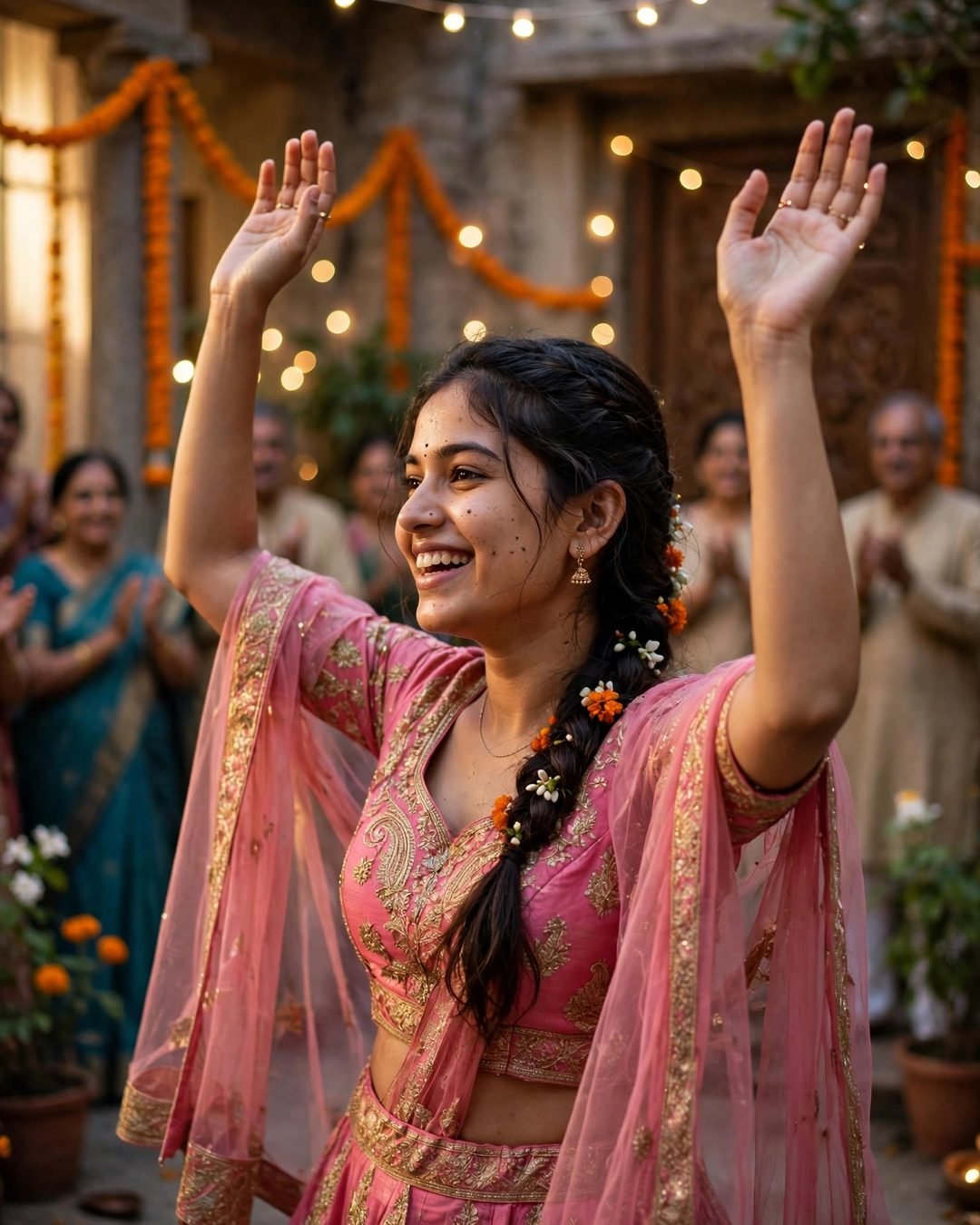
To avoid that clash, capture two or three simple reference selfies in neutral, even window light with no harsh shadows on either side of your face. Evenly lit faces are far easier for ChatGPT and Google Gemini to relight inside warm evening scenes—like a Sangeet night celebration or a lantern-lit courtyard—without distorting your nose bridge or eye sockets.
The Two-Step Refinement Workflow
Instead of cramming every outfit, prop, and background detail into a single generation and hoping for perfection, try a two-step workflow when likeness matters most (such as groom portraits, ethnic wear shoots, or professional headshots):
- Step 1 — Lock face, framing, and outfit first: Generate the portrait with a simple, uncluttered background so the model focuses its spatial budget on your face and garment draping.
- Step 2 — Refine background or lighting in a follow-up: Once the face looks unmistakably like you, reply with a targeted edit: “Keep the exact same face, pose, and outfit from this image, and only adjust the background to warm sunset golden-hour bokeh.”
In our testing (see our full ChatGPT vs Google Gemini vs Grok breakdown), ChatGPT handles this two-step conversational lock especially well, while Google Gemini responds best when you give it a clean, unedited daylight reference photo from the start.
Troubleshooting Common Likeness Errors
- Skin looks too pale or too orange: Add “maintain exact natural skin undertone from the reference photo; neutral white balance, no warm orange cast.”
- AI made you look 10 years younger or older: Remove buzzwords like “youthful glow” or “cinematic grit” and specify natural age-accurate skin texture.
- Couple photos blend both faces together: Upload two clear solo photos rather than one cropped couple selfie, and label each person by clothing color and position (left vs. right).
Privacy & Responsible Use Reminder
Always use your own photos or images you have explicit permission to edit. Avoid uploading sensitive documents or private photos of other people without their consent, and never use AI portraits to impersonate someone else or mislead viewers in official contexts.
Summary
Keeping your real face in AI portraits comes down to three habits: start with an unfiltered, evenly lit selfie at a matching angle; place explicit anti-beautification instructions at the start of your prompt; and use short follow-up edits instead of regenerating complex scenes from scratch. Master those three steps and virtually any prompt template will produce a portrait that genuinely looks like you.